WhatsApp Voice Messages on PC – Read Them in Web and Desktop
A voice message at the office but no headphones? How to play or read WhatsApp voice messages on your PC – in WhatsApp Web and the desktop app.
Open-plan office, Tuesday morning. WhatsApp Web pops up on your screen: a voice message from your brother, 1:52. Your headphones are at home. Play it through the laptop speakers? Then half the department hears him ranting about his landlord.
What works on a PC
WhatsApp Web in the browser and the desktop app can basically do the same things with voice messages as your phone:
- Play: Voice messages play right on the computer, through speakers or headphones.
- Play faster: You can speed up playback on a PC too. That turns almost two minutes into a good one.
- Forward: You can forward messages to other chats on a PC just like on your phone.
What’s missing on a PC is discretion. On your phone, you hold it to your ear. On a computer without headphones, it’s either “everyone listens in” or “not at all.”
Read instead of listen with Summarize.One
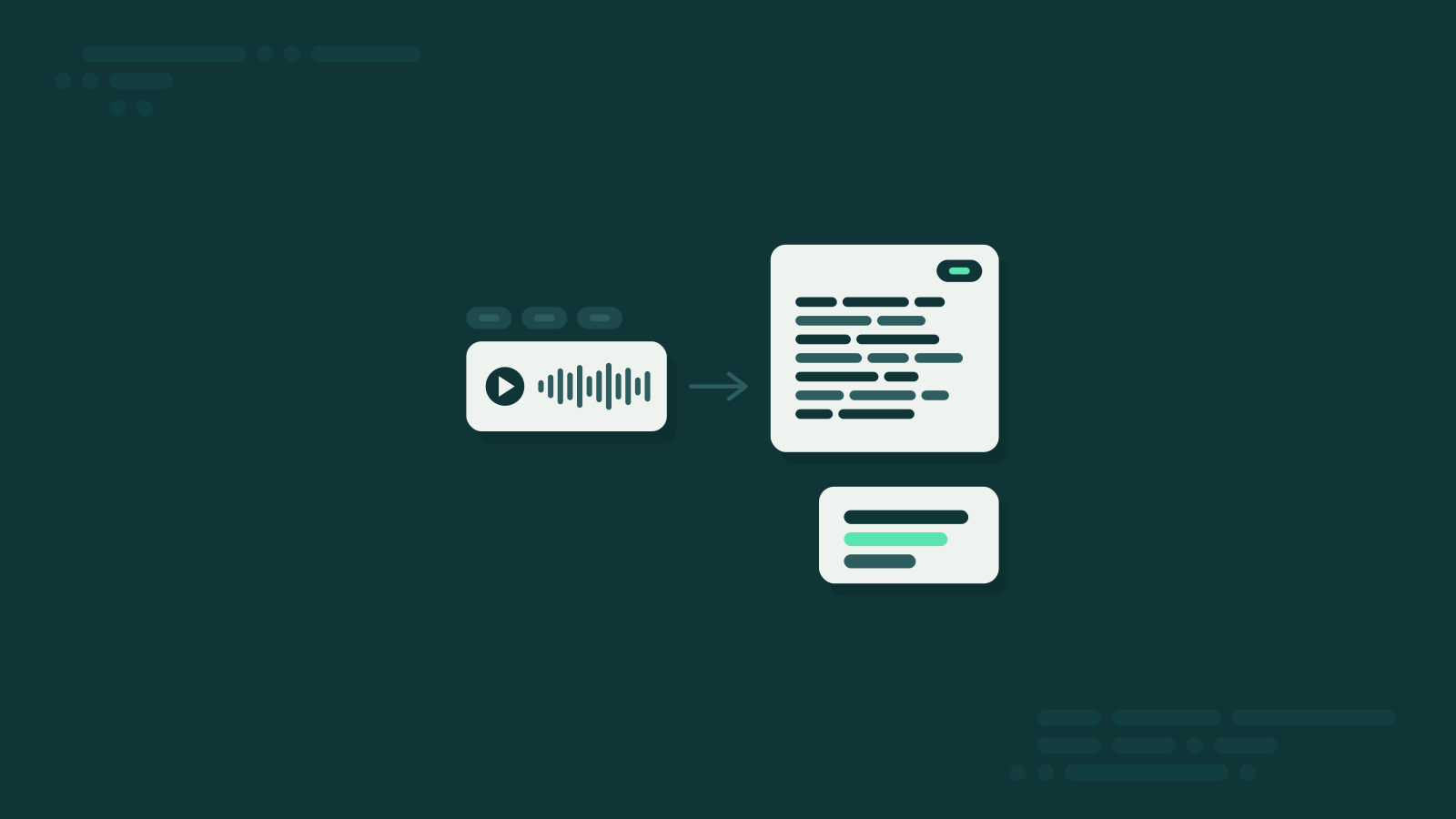
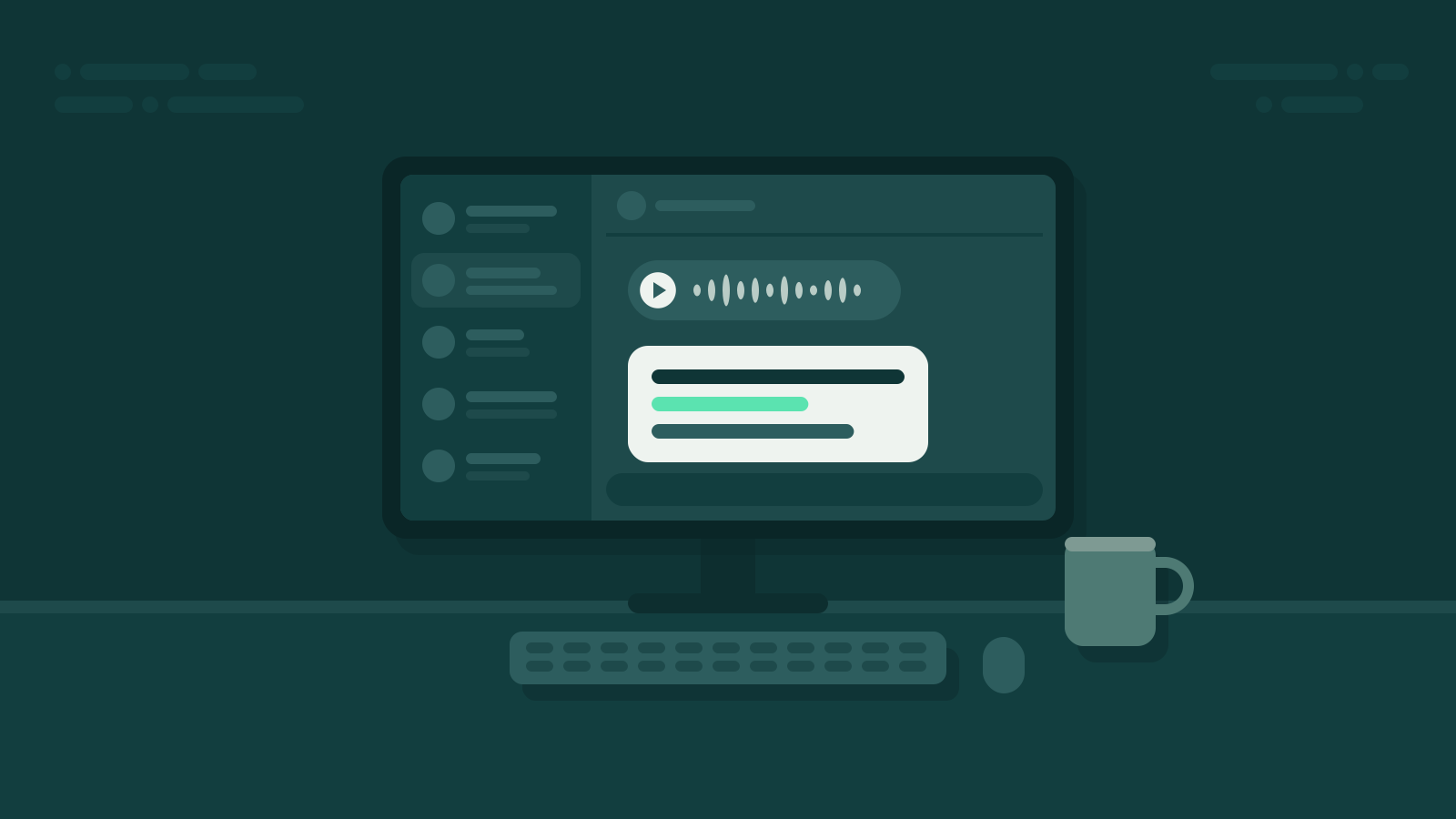
This is where forwarding comes in. Summarize.One is a bot on WhatsApp that summarizes voice messages for you. Since WhatsApp Web and Desktop stay in sync with your phone, it all works on your PC:
- Start the bot chat: Send “Hello” to Summarize.One once. You can do that from your phone or right on your PC. No app, no download, no account.
- Forward: Forward the voice message to the bot in WhatsApp Web or the desktop app.
- Read: A few seconds later, the summary shows up in the bot chat – readable on your screen, without a sound.
Your brother’s message might become: “Landlord won’t return the security deposit. He’s asking if you can help measure the apartment this weekend.” Two sentences, zero eavesdroppers.
By default you get a summary – short, medium or as bullet points, your choice. If you need every word, switch on the full transcript in the settings. Important: the summary always lands in the bot chat, never automatically in the original chat. So you forward each message yourself. There are 5 free credits to try it out; after that, you buy credits as you go or get a subscription.
Tips for the office
- Keep headphones at your desk. A cheap pair in the drawer solves the problem for every message where tone matters.
- Check the volume first. Nothing’s more embarrassing than a voice message at full blast because your computer is still turned up from the last video.
- Watch your screen. In an open-plan office, coworkers like to read along. That goes for summaries just as much as for chats. Read personal stuff when nobody’s standing behind you.
- Log out of WhatsApp Web. On a shared or borrowed computer, log out when you’re done. Otherwise the next person reads your chats.
- Privacy when forwarding. Summarize.One processes data in a GDPR-compliant way, encrypted, on servers in the EU. Still: with sensitive content from other people, think about whether you want to forward it.
Bottom line
On a PC you can play voice messages, speed them up and forward them – just not quietly without headphones. For everything that doesn’t need to be heard, forward the message to Summarize.One and read the important part on your screen. Your coworkers will thank you.